
User interface
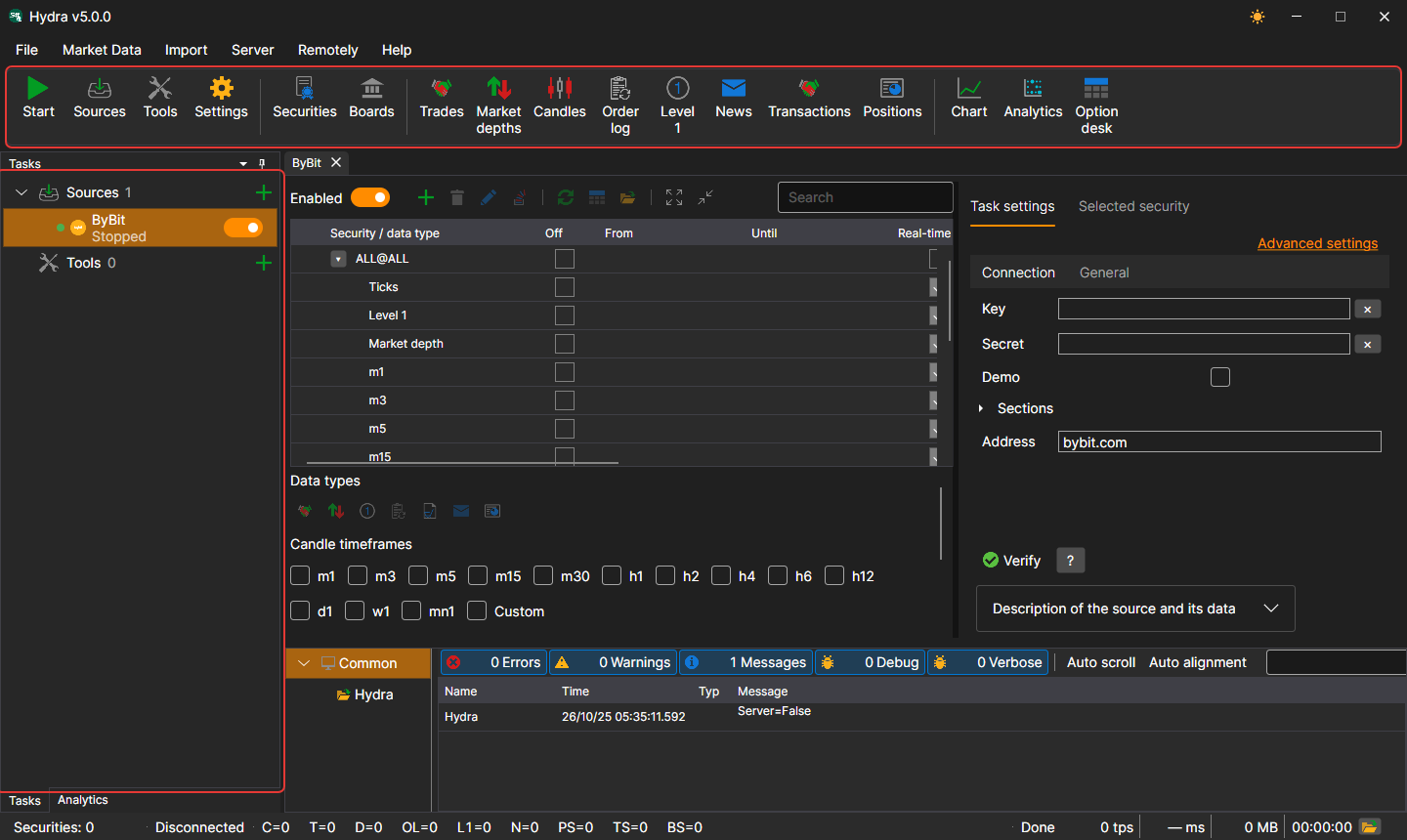
The Hydra window consists of a menu, a command bar below it, the Tasks and Analytics panels on the left, the Logs panel at the bottom and documents in the center: panels of sources, tools and market data. At the bottom of the window is the status bar.
Menu
- File — adding sources and tools, general settings, proxy settings, settings reset and exit.
- Market Data — panels for viewing the market data of the storage: securities, boards, trades, order books, candles, order log, Level 1, news, transactions, positions, as well as the chart, analytics and the option desk.
- Import — import of data from files, synchronization of the storage and building its index.
- Server — the server mode: enabling it, network settings, users and subscriptions of clients.
- Remotely — remote control of Hydra via the Telegram bot (Control Panel) and the Channels window with the list of Telegram channels to which Hydra sends messages.
- Help — changing the theme, contacting the StockSharp team, reporting a problem, documentation and the About window.
On macOS, the menu moves to the system menu bar.
Command bar
Below the menu is the command bar with the most frequent actions: Start / stop all tasks, adding sources and tools, settings; the Securities and Boards panels; the market data panels — trades, order books, candles, order log, Level 1, news, transactions and positions; Chart, Analytics and Option desk.
Tasks
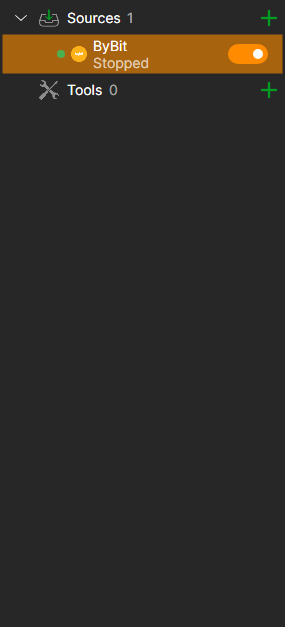
On the Tasks panel on the left, the tasks are arranged in the Sources and Tools groups. A group shows the number of its tasks and the + button that adds a new one. A task shows a dot (green if the task is enabled), an icon, a name, a line with its current state and a switch; the clock icon shows that the task has working time set. A double-click opens the task panel, and a right-click opens a menu with the Open and Delete items.
While nothing is open in the center of the window, a welcome screen with the Add sources and Add tools buttons is shown there.
While a long operation is in progress — for example, a large storage is being read or a source is being added — the window is covered with a semi-transparent overlay describing what is being done.
Task panel
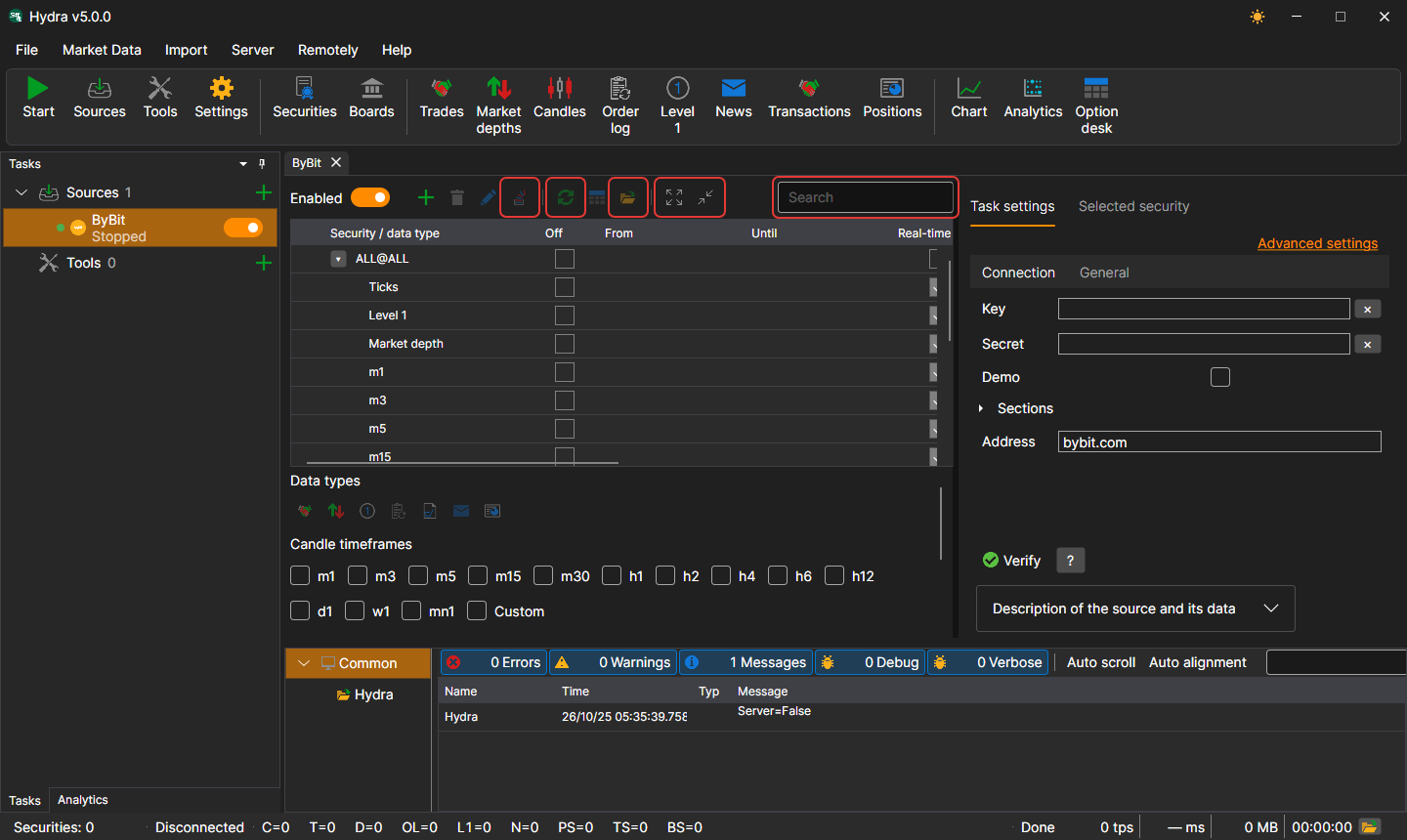
Above the instruments table of a source are the search, the Enabled switch, the buttons for adding, deleting and editing instruments, Add ALL@ (all instruments of the source at once), date synchronization, going to the data and to the storage folder, collapsing and expanding rows. The settings tab has a connection check button and the source description, and the Selected security tab shows the properties of the instrument selected in the table.
Status bar
At the bottom of the window you can see how many instruments are in the storage, whether Hydra is connected, how much data of each kind has been received since the start, what the program is busy with now, and the last warning or error of the log. The folder button opens the logs folder. While a long operation is in progress — reading a large storage, adding a source — the window is covered with an overlay describing the work.