
Working with tables
The tables of all Terminal panels — instruments, orders, trades, positions, portfolios, Level 1, the order log, news — work the same way.
Table menu
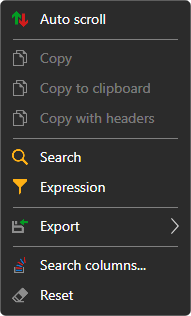
A right-click on the table rows opens a menu:
- Auto scroll — the table scrolls to new rows by itself;
- Copy, Copy to clipboard — copy the selected rows to the clipboard: the visible columns in the order in which they are shown, separated by tabs, one table row per line of text. Copy with headers adds the column names as the first line. Ctrl+C does the same as Copy;
- Search (Ctrl+F) — searching for text in the table. You can choose which columns to search in; the Previous and Next buttons move between the found cells, and Clear resets the search;
- Expression — a filter of rows by a condition on the column values, in the form of a formula, for example
=[Price] > 100. The field suggests the column names and functions (CONTAINS,STARTSWITH,ENDSWITH,TODAY,NOWand others), shows an error in the formula at once, and Preview shows what the formula gives for the selected row. Apply turns the filter on, Clear filter removes it; - Export — the table to the clipboard (as text in the CSV format or as a picture), to a CSV, Excel or PNG file. Share image link uploads a picture of the table to the StockSharp website and copies the link to it; this requires signing in to the website. Print opens the table in the browser, from where it can be printed;
- Search columns... — a window in which columns are shown and hidden;
- Reset — return the table to its original look.
Column menu
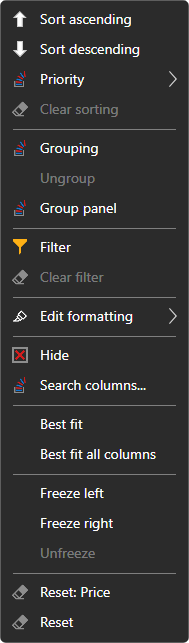
A right-click on a column header opens the menu of this column:
- Sort ascending, Sort descending, Clear sorting. A click on the header also sorts the table by this column. Priority adds sorting by the column to the one already set, to sort by several columns at once;
- Grouping — group the rows by the column values, Ungroup. The Group panel shows the grouping levels: a column can be added from the list or dragged onto the panel by its header, the levels can be rearranged, and each level has its own sort direction;
- Filter — a filter of rows by the values of this column, Clear filter;
- Edit formatting — the rules by which the cells of the column are highlighted with color: Add rule; a rule can be edited, turned off or deleted;
- Hide — remove the column, Search columns... — bring it back;
- Best fit of the column and Best fit all columns — the width by the content;
- Freeze left, Freeze right, Unfreeze — a frozen column stays in place when the table is scrolled sideways;
- Reset the column or the whole table.
The look of the table — which columns are shown, their order and width — is saved together with the window layout.