
Install and remove apps
Everything Installer does with programs is done on the Applications tab: installing, updating, repairing and removing. An action is marked for a product in the list, and all the marked actions are performed at once.
Catalog
The list is split into two parts: Installed — what is already on this computer, and Available — what can be installed. If a part has nothing in it, Empty is shown instead.
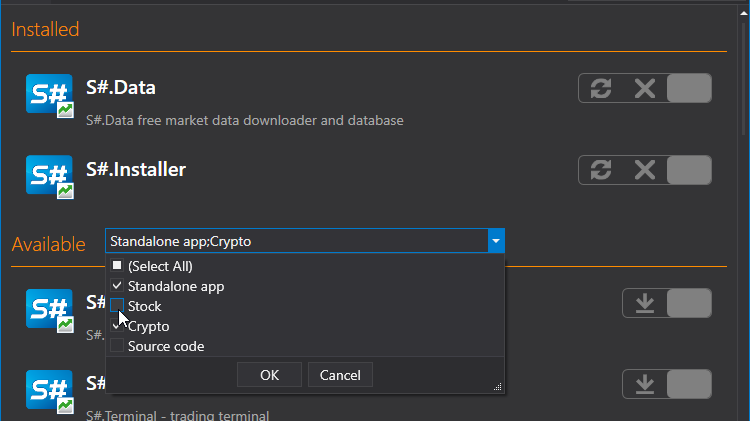
The following help you find what you need:
- the Search field above the list — the list narrows as you type, and the cross next to it brings the whole list back;
- the funnel at the Available heading — a filter by product type; the All button clears it;
- the button with a circular arrow at the top left — Force check updates: it asks the store whether anything new has been released, without waiting for the next scheduled check.
An installed product shows its version in its row, and if a new version has been released, the Updates available label.
License agreement
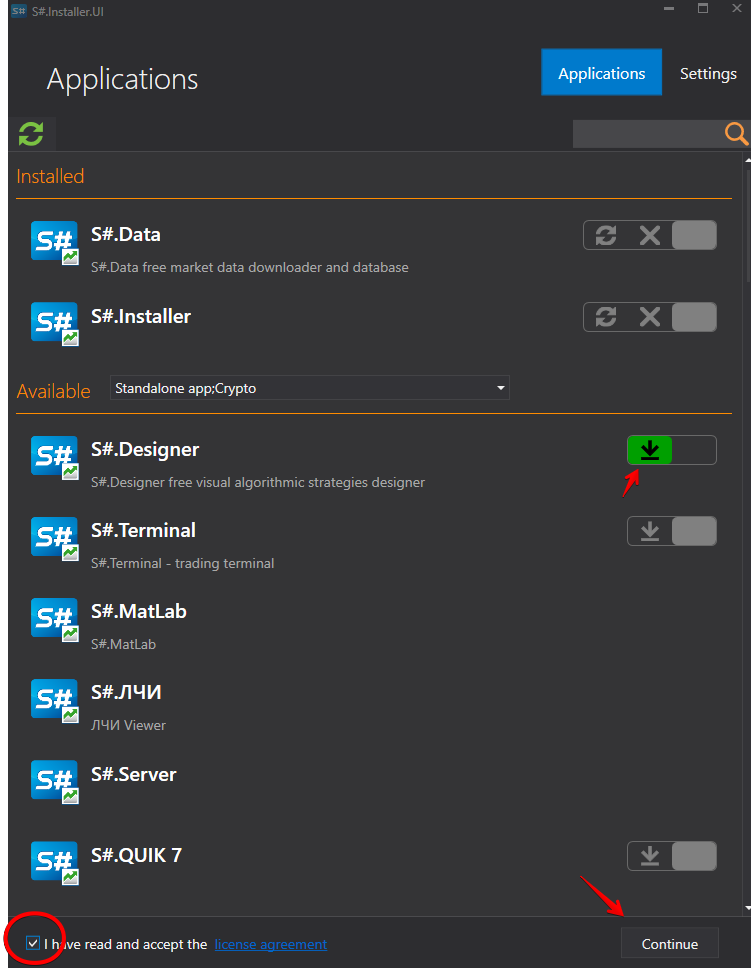
At the bottom of the window is a check box with the consent and a link to the text of the agreement. Until it is accepted, the Continue button stays unavailable, whatever is marked. The consent is accepted once and on the server side — after that, the check box is no longer shown, and it cannot be cleared back.
What to do with a product
Each row has a set of buttons on the right, of which one is selected. Which of them are present depends on the product:
| Button | When available | What it does |
|---|---|---|
| Install | the product is not installed | installs it |
| Update | installed, and a new version has been released | updates it |
| Repair | installed | installs it again on top, without touching the settings |
| Delete | installed | removes it |
| Skip | always | does nothing with this product |
A product that is not installed has a single choice — to install it:
An installed one has repair:

and removal:

The Continue button at the bottom right becomes active as soon as at least one action is marked. You can mark several products at once — for example, update one and remove another. When everything is marked, click Continue at the bottom right.
Wizard
Next, the window shows a three-step wizard instead of the list.
Applications — what exactly will be done. Check the list and click Continue.
Install options
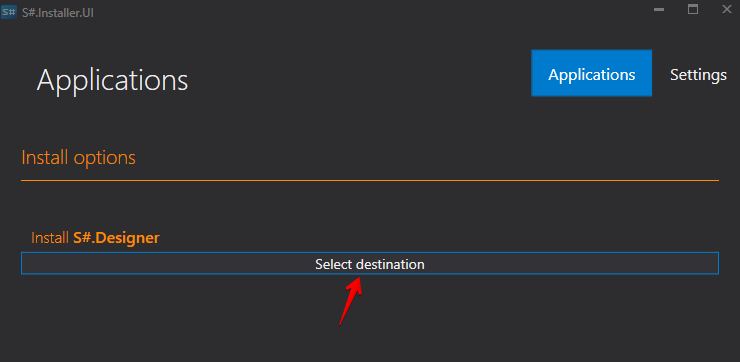
Each action has its own settings here:
- Application install folder — selected with a button. IMPORTANT! The folder must be empty.
- Version and Recipient — which version is installed and for whom.
- Shortcut — create a shortcut on the desktop.
- Remove the application data folder — only when removing: delete the program's settings and downloaded data together with it. Without this check box, they remain.
- Plugins — for programs that support them: which connectors to install together with the product.
- Install main application parameters — for a product with plugins, you can clear this check box and work only with the plugins, without touching the program itself.
Click Next.
Following actions will be executed — the last check. Click Execute.
While the work is in progress, In progress. Please wait... is shown, and when it is finished, Done. The Close button returns to the list; Back at any step leads to the previous one.
If something has failed, the error text is shown right in the wizard, and the details are on the Logs page.
Watch video tutorial