Settings
Hydra can be used in server mode, in this mode you can remotely connect to Hydra and get the existing data in the storage. You can connect to Hydra running in server mode from Designer (see Getting started in the Designer documentation for how to do this). You can also connect to Hydra via the API (see the FIX/FAST connectivity section for details).
In server mode, the Hydra program allows the user to work using one connection, with several programs at once. By setting the access key in the program settings, the user can simultaneously work with one source under one account.
Actually, the connection to the source occurs via Hydra, to which, for example, Designer, Terminal are simultaneously connected. This method allows you to avoid reconnection between programs, purchase of an additional connection. With such work, conflicts are excluded, the occurrence of which is due to the orders registering or trades from different programs. Hydra receives the signal and passes the result back to the program from which it was received, while the sequence of other work is not disturbed.
To enable Hydra server mode, select the Server mode item in the Server menu.
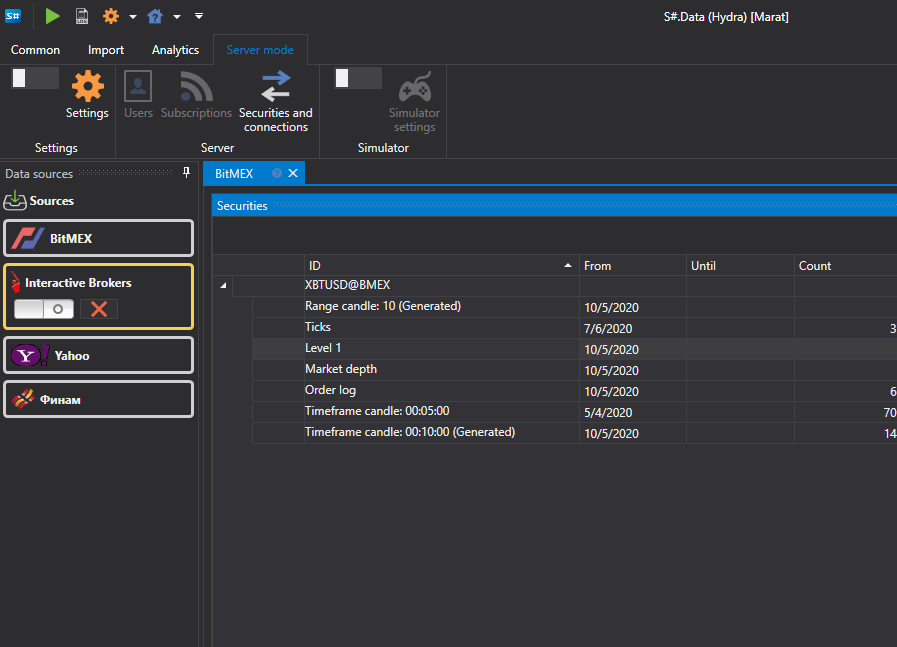
After that, select the Network settings item in the same menu to open the server mode settings window.
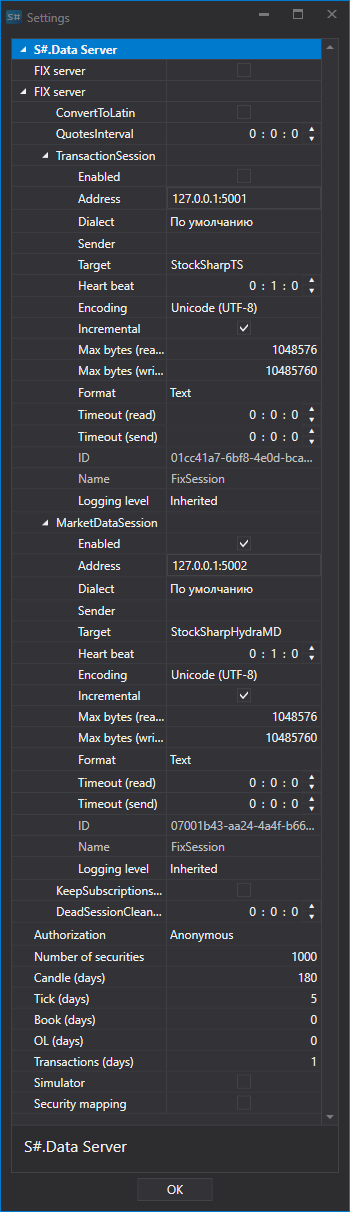
Hydra Server
FIX server - switch Hydra to server mode, distributing live trading and historical data via the FIX protocol.
In this section, you configure the connection for working with sources:
ConvertToLatin - convert Cyrillic to Latin
QuotesInterval - quotes update period
TransactionSession - setting of a trading session. Setting up for trading via the Hydra program.
This setting allows you to configure Dialect of the FIX protocol, Sender and Recipient, Data format and other settings. See FIXServer properties for details.
MarketDataSession - settings for transfer of market data received using Hydra. See FIXServer properties for details.
KeepSubscriptionsOnDisconnect - keeping subscriptions when disconnected from the source.
DeadSessionCleanupInterval - after what time interval the information will be cleared if the connection is disconnected.
Authorization - authorization to gain access to the Hydra server
Storage (the Authorization group) - where to store the server users: File or Database. For a database, the Connection to it and the Table (HydraUsers by default) are specified; passwords are stored in the database not as they are, but as hashes.
Number of securities - the maximum number of instruments that can be requested from the server
Candles (days) - the maximum number of days available to download candle history
Ticks (days) - the maximum number of days available to download the tick data history
Order books (days) - the maximum number of days available to download order book history
OL (days) - the maximum number of days available to download the OL data history
Transactions (days) - the maximum number of days available to download the transaction history
Simulator - turn on simulator mode
Security mapping - enable the transfer mode of only specified instruments.
If you set Authorization other than Anonymous and enable Server mode, the Users item becomes available in the Server menu, which opens the Users window.
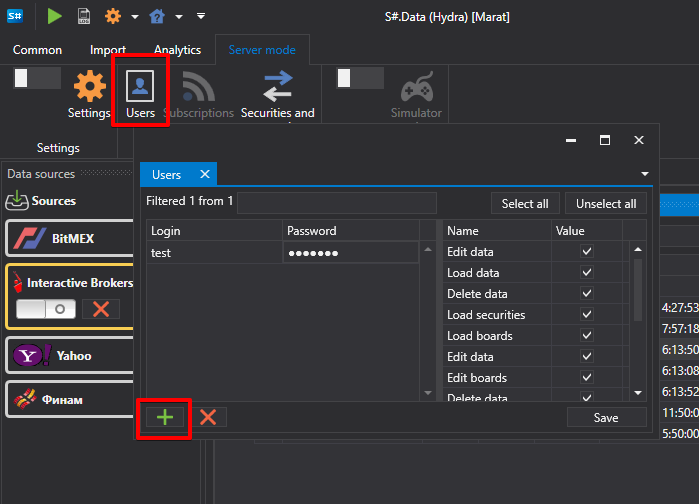
The left side of the window has the list of users: Add creates a new one, Delete removes the selected one, Save writes the changes. On the right are the email and password of the selected user, the addresses from which the user is allowed to connect, and the user's rights: each is marked with a check box, and Select all and Unselect all mark or clear all of them at once.
While the server is running, the Subscriptions item is available in the Server menu: it opens a panel with the market data subscriptions of the clients connected to the server.