
Running a Script
To create a new analytics script, open the Analytics tab on the left panel, select the script language and a template for a quick start, and click Add. The script opens in a separate tab:
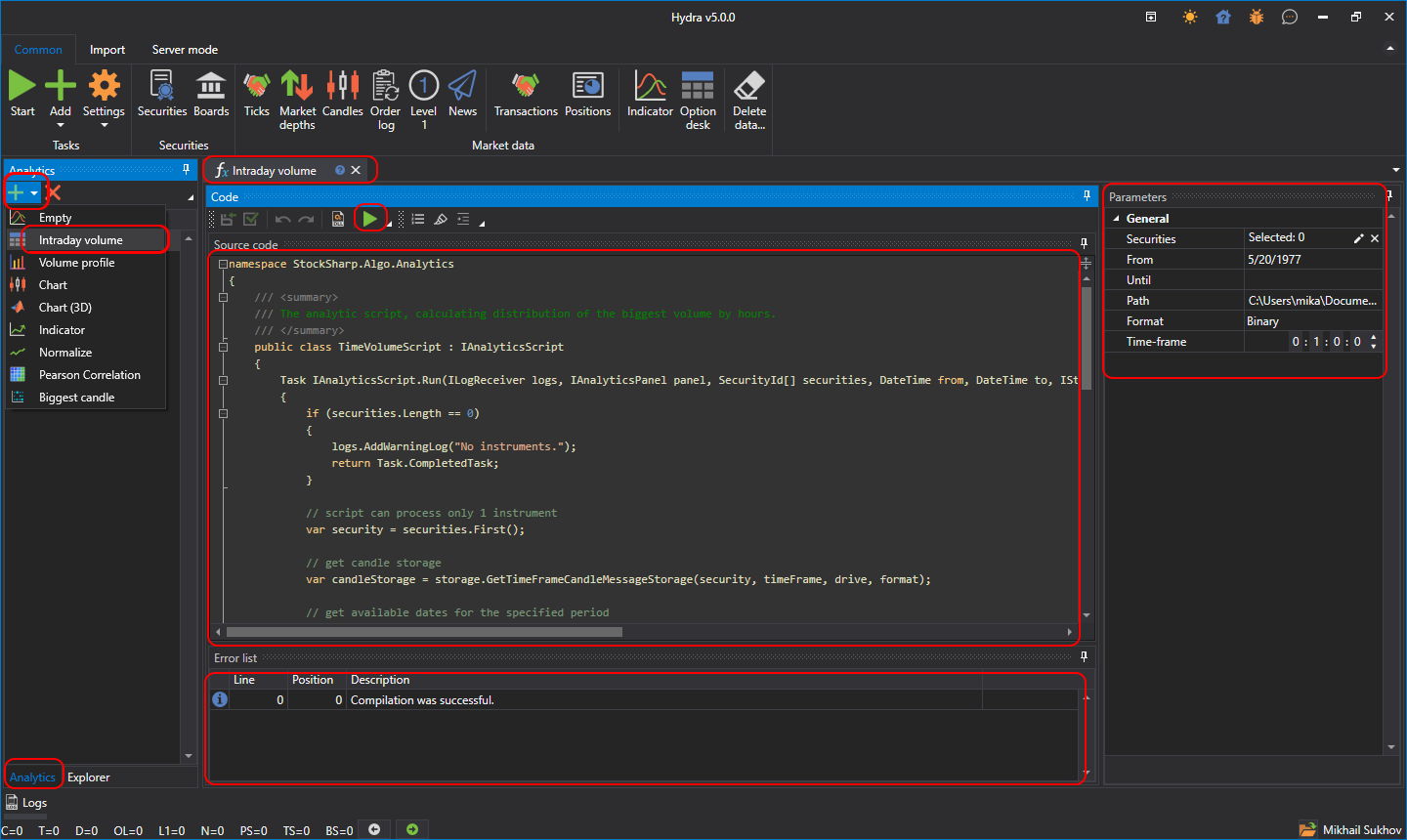
The screenshot presents the main interface of this feature, consisting of several key components:
- Analytics panel: on the left, the language and template of a new script are selected (intraday volume, volume profile, charts, indicators and other analysis tools); below them are the icon buttons Add, Open and Delete (the button name is shown in its tooltip) and the list of created scripts.
- Launch parameters and buttons: above the code, the instruments, period, storage, format and time frame are set, and the buttons perform Save source, References (the assemblies and packages the script references), Compile and run source, Stop and Export result.
- Code Window: The code window displays the source code of the selected analytical script. Users can directly edit the code to customize or create analytical calculations and strategies.
- Parameter Panel: on the right side, opened with the Parameters button; it sets parameters for analytical scripts, including the selection of instruments, analysis period, data path, and other settings.
- Error List: At the bottom of the interface, there is a list of errors detected during the compilation or execution of the analytical script.
The analytics script is formatted as a class inherited from IAnalyticsScript.
When setting parameters:
- Instrument can be set from one to several instruments depending on the script's logic.
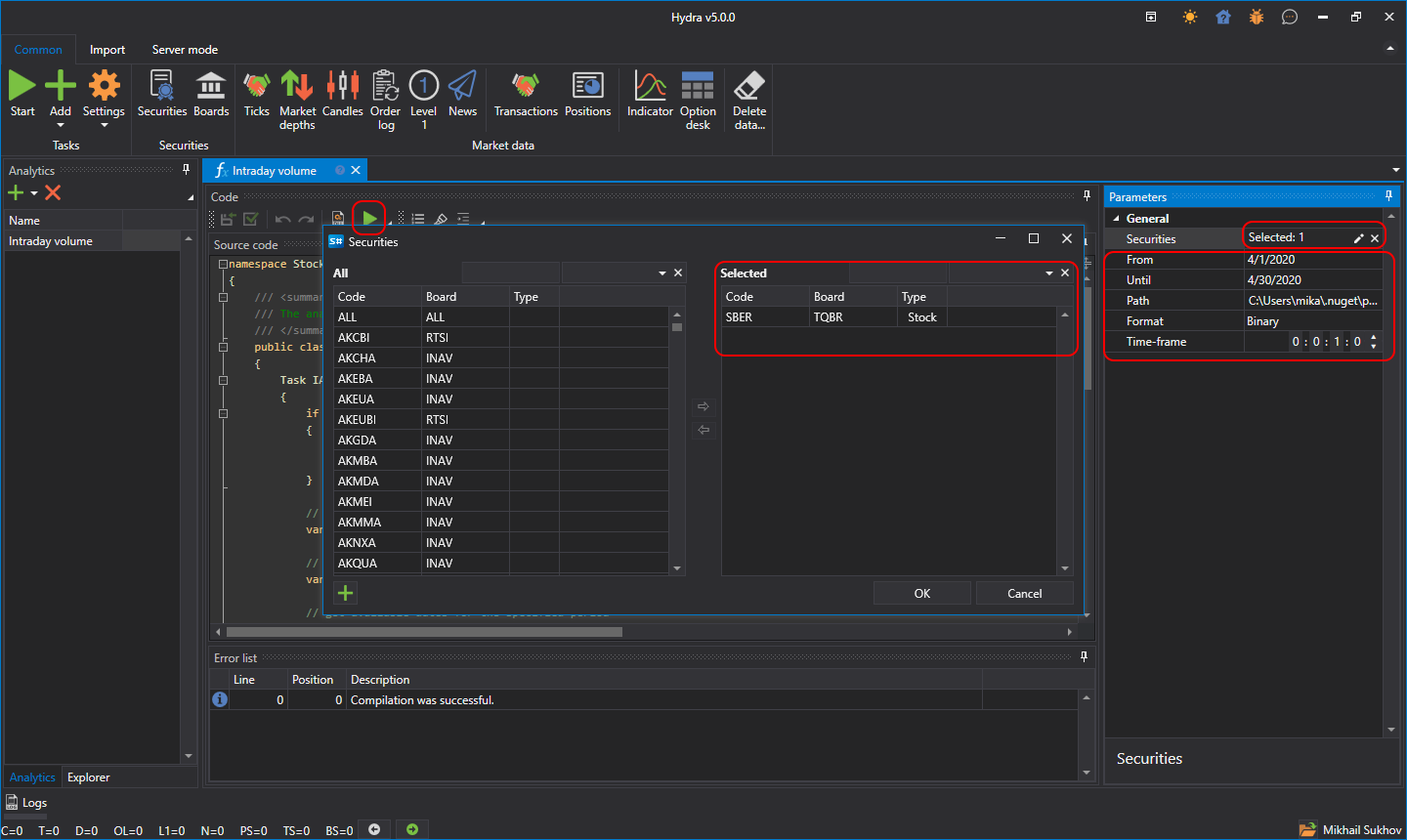
- The date range.
- The storage from which to retrieve data.
- The script's working time frame, if it uses one.
Clicking the  button compiles and runs the script, and the results of its execution open in a new tab.