
Select source
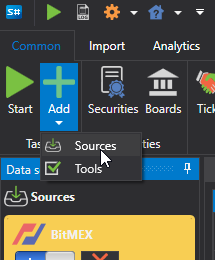
To add a new market data source, open the File menu and select Sources, or click the Sources button on the toolbar.
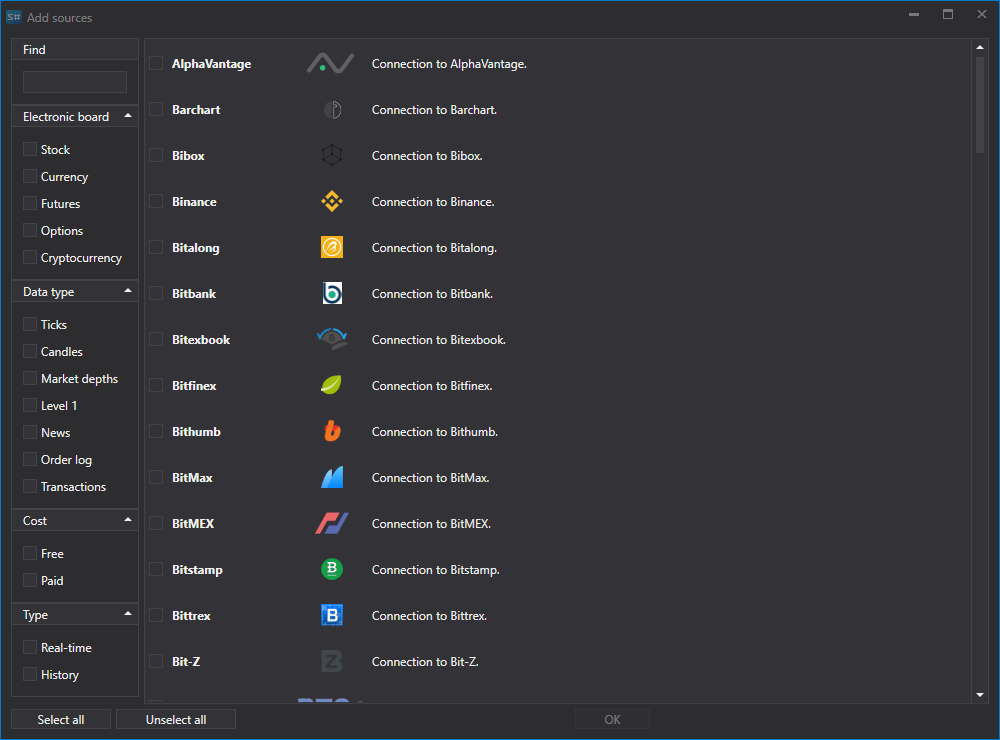
A list of sources opens. You can select several at once, by clicking the check box or the name, and click Add selected.
You can also add several instances of the same source, for example, two ByBit sources with different keys or different folders for downloaded data. Each instance is a separate task on the Tasks panel. The Header on the General tab of the source settings helps to tell them apart.
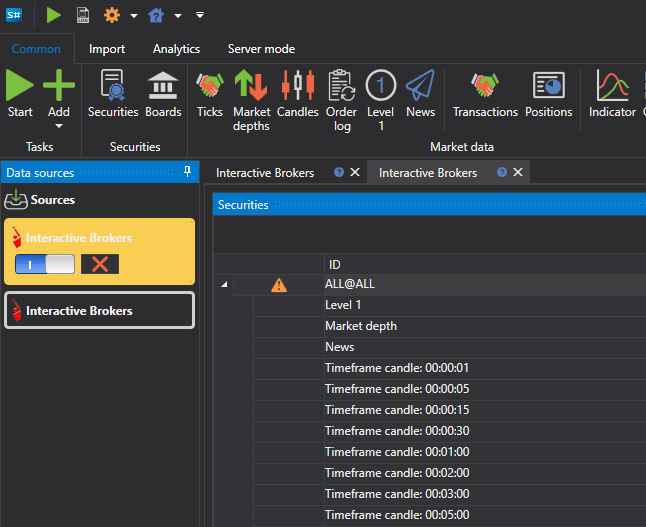
In order for the source to download data after clicking the Start button, it should be enabled. This is done with the  switch: every source has it on the Tasks panel and above the source instruments table (Enabled). The source can be enabled before or after adding instruments.
An unnecessary source is deleted with the Delete command in the context menu of the source on the Tasks panel.
The source settings are on the Task settings tab to the right of the instruments table. The Connection tab has what the source cannot connect without: keys, address and so on; the General tab has the rest. The Advanced settings link shows all the parameters of the source, not only the basic ones.
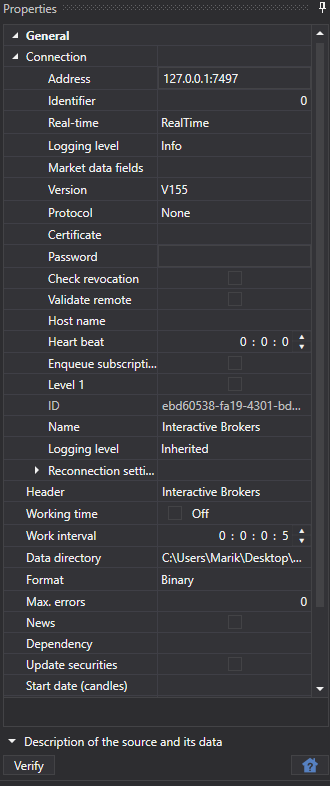
Common settings for all sources can be found in the Common connection settings item.
Each connection has its own characteristics. The link List of connectors provides a list of connectors and their settings.
Watch video tutorial