
Download instruments
Clicking the Download securities button  opens the Download securities window. To download a security, enter the security code or select the All flag, choose the data source, and click OK. Designer starts searching for securities in the selected source. All found securities are added to the securities list on the All securities panel. If storage is selected as the source and it already contains downloaded securities, Designer will find all securities available in that storage. This can be useful when history for a security has already been downloaded and copied to the storage folder. By default, Designer uses its own storage, so if you saved data to another folder, pay attention to the storage path and data format (bin or csv).
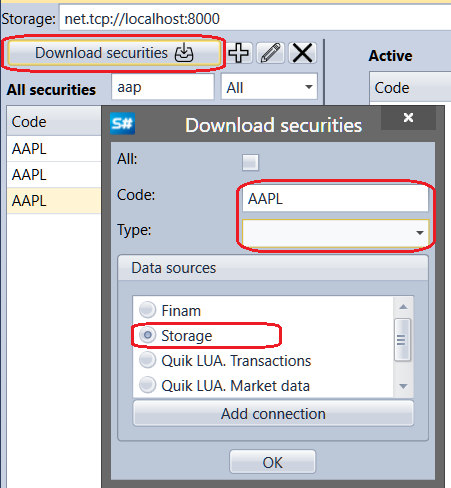
Clicking the Add connection button opens the Connections settings window.