
Schemes Panel
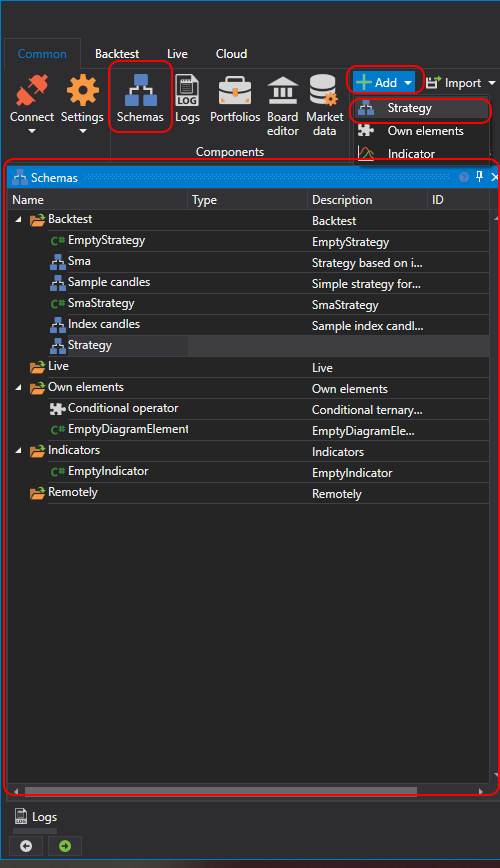
To open the Schemes panel, you need to click on the Schemes button in the Common tab. The Schemes panel contains a tree of scripts, grouped into folders by purpose. Strategy schemes and custom blocks are no different. They are edited using a common editor, Strategy Designer. However, to avoid confusion between them, they are divided into two independent lists and stored in different folders (strategies in the Backtest folder, custom blocks in the Own elements folder). Selecting a scheme for editing is done by double-clicking the required item in the list. The selected scheme will then open in the designer for viewing and editing. Below is a description of the folders in the Schemes panel:
The Ctrl+F shortcut over the tree opens a search line: it finds a scheme by name, description, identifier and type, and Esc closes it.
The Backtest folder contains trading strategies created both as schemes from a set of elements and connections between them, and from code. You can add a new strategy by pressing the Add
 button in the Common tab and selecting Strategy. Or by right-clicking on the Backtest folder in the Schemes panel, and pressing the Add button in the dropdown menu. In the window that opens, select how exactly you want to create a strategy.
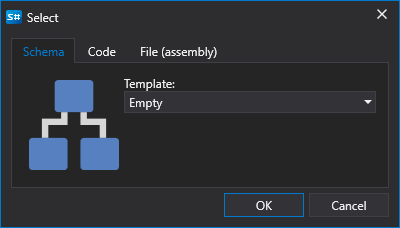
Strategies can be created using a visual designer without coding or using the built-in source code editor. Additionally, external DLL files with strategies written in Microsoft Visual Studio can be connected. Detailed information about Strategies is described in the section Using blocks.
If the DLL library selected on the tab cannot be read or does not contain a suitable strategy type, the reason is shown in red under the tabs, and the OK button is unavailable.
The Own elements folder contains elements that represent a complete functionality and can be used in various schemes or in one scheme multiple times with different property values. Such sets of elements can be extracted into a separate block, which will then be used like any standard element. Custom block is a regular scheme that is saved/loaded/edited like any strategy scheme. Add a new composite element by pressing the Add
button in the Common tab and selecting Own elements. Or by right-clicking on the Own elements folder in the Schemes panel, and pressing the Add button in the dropdown menu. When adding new custom blocks, they are automatically added to the Element Palette, in the Own elements group, and can be used in creating other strategy schemes and custom blocks. Detailed information about Custom Blocks is described in the section Creating composite elements.The Live folder contains strategies added for trading. Strategies that are launched are marked with an icon
 , and those that are stopped are marked with an icon
 . How to add strategies to the Live folder and how to launch them is described in the section Live trading.
The Indicators folder contains your own indicators for trading strategies, written by yourself. New indicators cannot be created with schemes, only code and external DLL files are available. The use of custom indicators in schemes is available through the Indicator block when selecting the type of indicator.
The Remotely folder contains strategies located on a remote server. Double-clicking such a strategy opens its tab, from which the strategy can be started and stopped on the server, and the position of a running one can be closed.