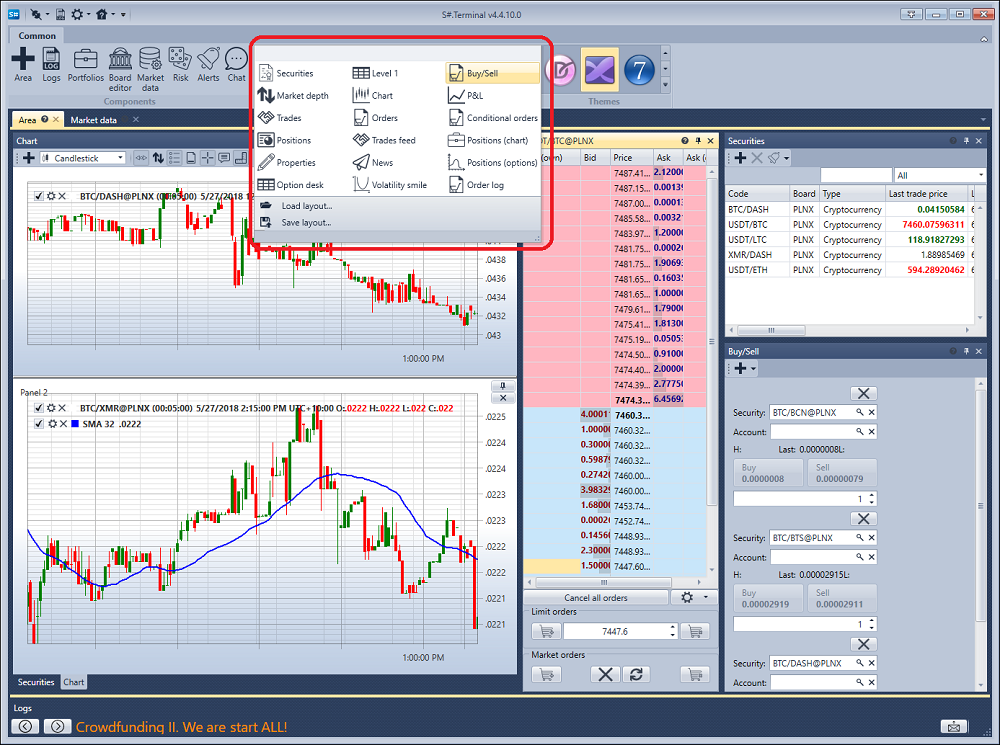
Início rápido
Quando inicia o Terminal pela primeira vez, será apresentada a seguinte janela:
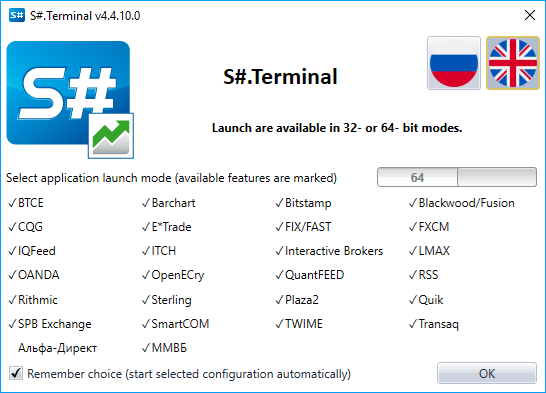
Tem de selecionar o modo de arranque e clicar em OK.
Depois de selecionar o modo de arranque, a janela do terminal abre com o conjunto predefinido de componentes.
Vamos às definições de ligação e selecionamos a ligação necessária. A forma de configurar a ligação é descrita na secção Definições de ligação.
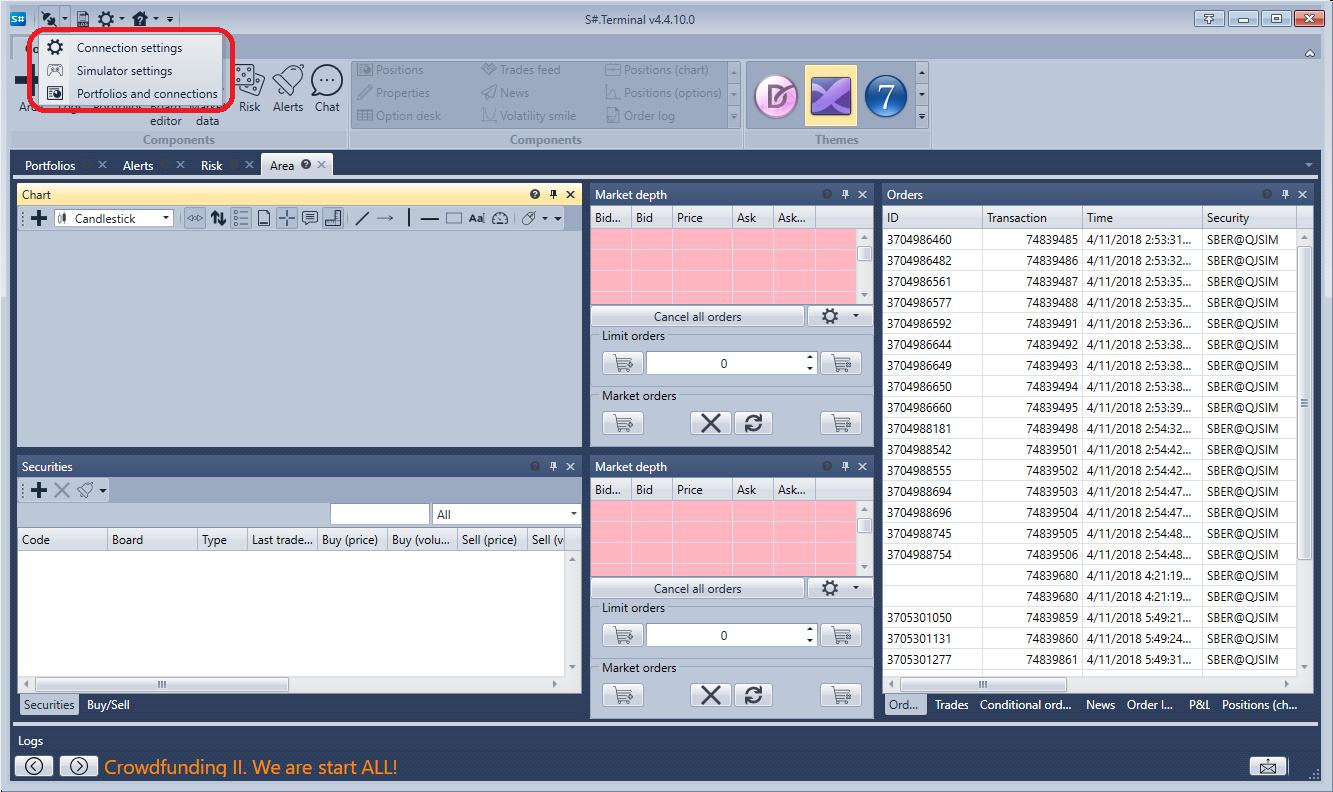
O passo seguinte é estabelecer ligação clicando no botão Ligar  .
.
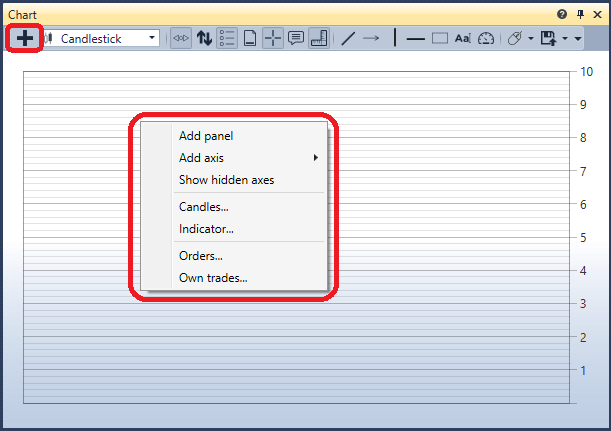
Ao clicar no botão Adicionar  no painel do gráfico, adicionamos uma nova área de gráfico. Ao clicar com o botão direito do rato na área do gráfico, adicionamos velas para o instrumento que nos interessa. Podemos adicionar indicadores, negócios próprios e ordens ao gráfico. Também existe a possibilidade de registar ordens a partir do gráfico. Para obter mais informações sobre como trabalhar com o gráfico, consulte a secção Gráfico.
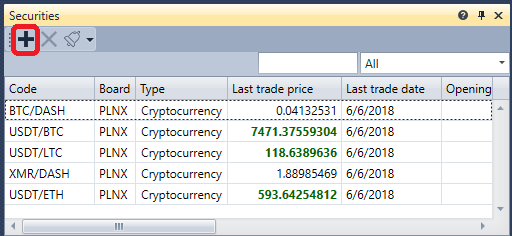
Ao clicar no botão Adicionar no painel Instrumentos, adiciona os instrumentos que pretende acompanhar. Os dados do melhor preço serão apresentados aqui. Para obter mais informações sobre como trabalhar com o painel Instrumentos, consulte a secção Instrumentos.
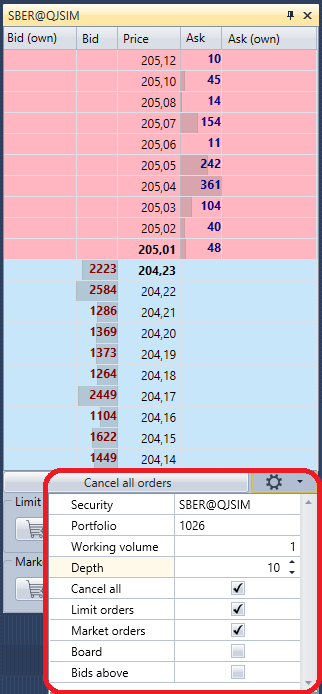
No livro de ofertas, depois de clicar no botão Definições  , aparece um painel onde pode especificar o Instrumento e a Carteira para os negócios. Aqui também pode ajustar a profundidade do livro de ofertas. Para obter mais informações sobre como trabalhar com um livro de ofertas, consulte a secção Livro de ofertas.
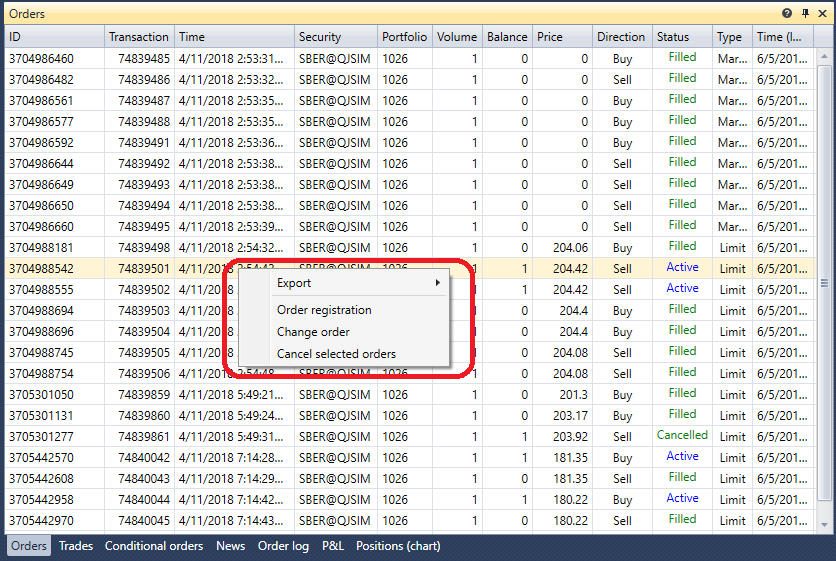
Vamos registar as primeiras ordens. As ordens podem ser registadas clicando nos botões Comprar/Vender ou clicando nas células das colunas Compra/Venda do próprio livro de ofertas. O painel de ordens apresenta todas as suas ordens. Ao clicar com o botão direito do rato numa ordem, verá um painel que permite submeter uma nova ordem, cancelar ou alterar a ordem selecionada. Para obter mais informações sobre como trabalhar com o painel de ordens, consulte a secção Ordens.
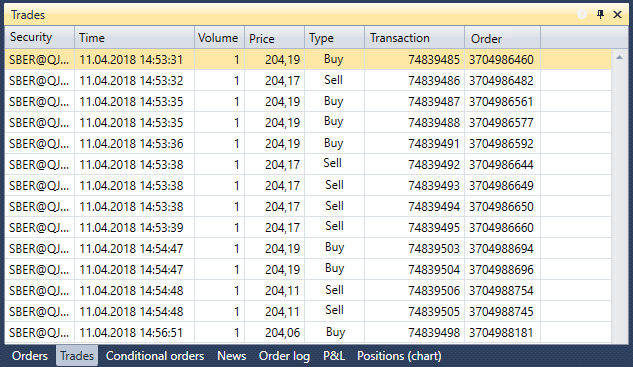
No painel Negócios, pode ver negócios por instrumentos. Para obter mais informações sobre como trabalhar com o painel Negócios, consulte a secção Negócios.
Se necessário, pode adicionar componentes adicionais. Todos os componentes são descritos na secção Componentes.