
コネクター
S# で取引所やデータソースを扱うには、基底クラス Connector を使用することを推奨します。
ソースコードリポジトリ
基底 Connector、メッセージモデル、共通アダプター契約は StockSharp コアリポジトリ に残っています。プロバイダー固有のオープンアダプターは、StockSharp Connectors リポジトリ で個別に管理されています。
最上位の各コネクターディレクトリには独立した .NET プロジェクトがあり、Connectors.slnx でリポジトリ全体をビルドできます。アダプター実装の調査、既存コネクターの修正、新しいコネクターの追加には、このリポジトリを使用してください。
Connector の利用方法を見てみましょう。この例のソースコードは Samples/01_Basic/01_ConnectAndDownloadInstruments プロジェクトにあります。
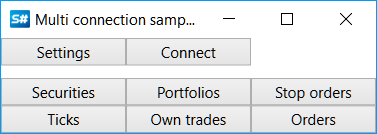
Connector クラスのインスタンスを作成します。
...
public Connector Connector;
...
public MainWindow()
{
	InitializeComponent();
	Connector = new Connector();
	InitConnector();
}
Connector を設定するために、API には複数の接続を同時に設定できる専用のグラフィカルインターフェイスがあります。使用方法は グラフィカル設定 セクションで説明されています。
...
private readonly IFileSystem _fileSystem = Paths.FileSystem;
private const string _connectorFile = "ConnectorFile.json";
...
private void Setting_Click(object sender, RoutedEventArgs e)
{
	if (Connector.Configure(this))
	{
		Connector.Save().Serialize(_fileSystem, _connectorFile);
	}
}
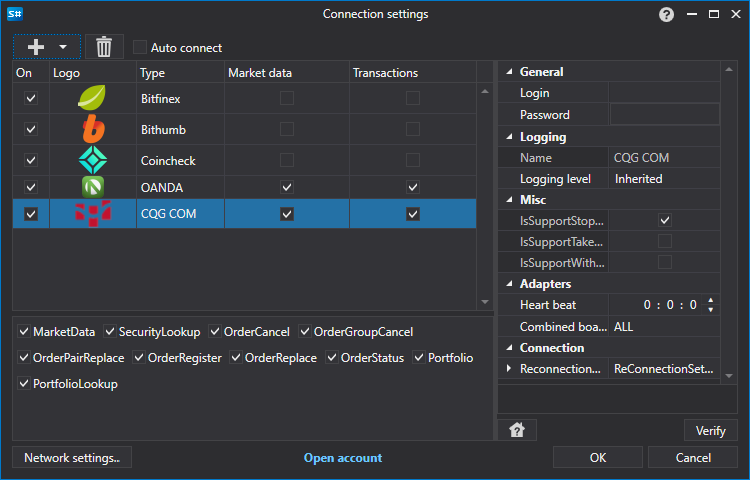
同様に、拡張メソッド TraderHelper.AddAdapter<TAdapter>(StockSharp.Algo.Connector connector, System.Action<TAdapter> init ) を使用することで、グラフィカルウィンドウを使わずにコードから直接接続を追加できます。
...
// Binance に接続するためのアダプターを追加
connector.AddAdapter<BinanceMessageAdapter>(a =>
{
	a.Key = "<APIキー>";
	a.Secret = "<シークレットキー>";
});

// ニュース用 RSS を追加
connector.AddAdapter<RssMessageAdapter>(a =>
{
	a.Address = "https://news-source.com/feed";
});
1 つの Connector オブジェクトには、無制限の数の接続を追加できます。そのため、プログラムから複数の取引所やブローカーへ同時に接続できます。
InitConnector メソッドでは、IConnector に必要なイベントハンドラーを設定します。
private void InitConnector()
{
	// 接続成功イベントを購読
	Connector.Connected += () =>
	{
		this.GuiAsync(() => ChangeConnectStatus(true));
	};

	// 接続エラーイベントを購読
	Connector.ConnectionError += error => this.GuiAsync(() =>
	{
		ChangeConnectStatus(false);
		MessageBox.Show(this, error.ToString(), LocalizedStrings.ErrorConnection);
	});

	// 切断イベントを購読
	Connector.Disconnected += () => this.GuiAsync(() => ChangeConnectStatus(false));

	// エラーイベントを購読
	Connector.Error += error =>
		this.GuiAsync(() => MessageBox.Show(this, error.ToString(), LocalizedStrings.Str2955));

	// マーケットデータ購読失敗イベントを購読
	Connector.SubscriptionFailed += (subscription, error, isSubscribe) =>
		this.GuiAsync(() => MessageBox.Show(this, error.ToString(),
			LocalizedStrings.Str2956Params.Put(subscription.DataType, subscription.SecurityId)));

	// データ受信用の購読

	// 銘柄
	Connector.SecurityReceived += (sub, security) => _securitiesWindow.SecurityPicker.Securities.Add(security);

	// ティック取引
	Connector.TickTradeReceived += (sub, trade) => _tradesWindow.TradeGrid.Trades.TryAdd(trade);

	// 注文
	Connector.OrderReceived += (sub, order) => _ordersWindow.OrderGrid.Orders.TryAdd(order);

	// 自己取引
	Connector.OwnTradeReceived += (sub, trade) => _myTradesWindow.TradeGrid.Trades.TryAdd(trade);

	// ポジション
	Connector.PositionReceived += (sub, position) => _portfoliosWindow.PortfolioGrid.Positions.TryAdd(position);

	// 注文登録失敗
	Connector.OrderRegisterFailReceived += (sub, fail) => _ordersWindow.OrderGrid.AddRegistrationFail(fail);

	// 注文キャンセル失敗
	Connector.OrderCancelFailReceived += (sub, fail) => OrderFailed(fail);

	// マーケットデータプロバイダーを設定
	_securitiesWindow.SecurityPicker.MarketDataProvider = Connector;

	try
	{
		if (File.Exists(_connectorFile))
		{
			var ctx = new ContinueOnExceptionContext();
			ctx.Error += ex => ex.LogError();
			using (new Scope<ContinueOnExceptionContext>(ctx))
				Connector.Load(_connectorFile.Deserialize<SettingsStorage>(_fileSystem));
		}
	}
	catch
	{
	}

	ConfigManager.RegisterService<IExchangeInfoProvider>(new InMemoryExchangeInfoProvider());

	// グラフィカル設定用のアダプタープロバイダーを登録
	ConfigManager.RegisterService<IMessageAdapterProvider>(
		new InMemoryMessageAdapterProvider(Connector.Adapter.InnerAdapters));
}
Connector の設定をファイルへ保存し、ファイルから読み込む方法は 設定の保存と読み込み セクションにあります。
独自の Connector を作成する方法については、独自コネクターの作成 セクションを参照してください。
注文の発注については、注文、新規注文の作成、新規ストップ注文の作成 の各セクションで説明されています。
追加機能
IFileSystem と Paths.FileSystem
設定のシリアライズやデシリアライズなどのファイル操作には IFileSystem を使用します。既定のインスタンスは Paths.FileSystem から利用できます。
private readonly IFileSystem _fileSystem = Paths.FileSystem;
IFileSystem パラメーターを持たない Serialize および Deserialize メソッドは [Obsolete] としてマークされています。
非同期注文メソッド
注文を扱うために、次の非同期メソッドを利用できます。
RegisterOrderAsync- 注文を非同期に登録します。CancelOrderAsync- 注文を非同期にキャンセルします。EditOrderAsync- 注文を非同期に編集します。
SubscriptionsOnConnect
SubscriptionsOnConnect プロパティは、接続時に自動的に実行される購読を制御します。既定では、銘柄、ポートフォリオ、注文への購読が含まれます。
アダプターイベント
特定のアダプターのイベントを追跡するために、次のイベントを利用できます。
ConnectedEx- 特定のアダプターが接続されました。DisconnectedEx- 特定のアダプターが切断されました。ConnectionErrorEx- 特定のアダプターで接続エラーが発生しました。
購読ライフサイクル
SubscriptionStarted- 購読が開始されました。SubscriptionOnline- 購読がオンライン状態に切り替わりました。履歴データの受信が完了し、リアルタイムデータの送信が開始されています。SubscriptionFailed- 購読エラー。3 番目のパラメーターisSubscribeは、エラーが購読時に発生したのか、購読解除時に発生したのかを示します。SubscriptionStopped- 購読が停止しました。